Written by Laurence
Edited on
26 March 2025
·
13:55
With these 7 tips, you'll enjoy your Sonos system even more
You have a Sonos system so you can enjoy wireless music. With these practical tips, we'll help you have even more fun with your Sonos system.

7 tips for your Sonos speaker
Below, you can read 7 tips for more fun with your Sonos system.
Tip 1: Operate via Google Assistant
Tip 2: Choose streaming service
Tip 3: Create playlist
Tip 4: Control music without a phone
Tip 5: Fall asleep and wake up to your favorite music
Tip 6: Turn off the light
Tip 7: Extend the system

Tip 1: control your speakers via Google Assistant
You can use the built-in Google Assistant on the Sonos Beam, Sonos Era 300, and Sonos One to control your Sonos speakers with your voice. Ask the speakers to play a song and pause it. Or ask questions about the weather, traffic, the latest news, or your Google calendar. Do you have speakers other than the Sonos Beam, Era 300 or Sonos One? Connect them to a Google Home speaker to use the voice control.
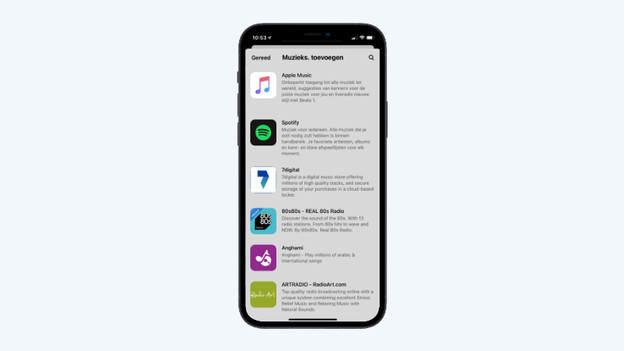
Tip 2: choose the correct streaming service
You once bought a subscription to a streaming service and never thought about it again. But a lot more services were introduced the last couple of years. Each has its own pros and cons, so take your time to choose the right service. Most providers offer a free trial subscription, so you can try out new services without any risks.

Tip 3: discover new music with Sonos Radio
Sonos Radio is a free service offered by Sonos. Via Sonos Radio, you can listen to different radio channels and playlists.

Tip 4: control your music without a phone
Don't have your smartphone at hand for the moment? No worries. Press your speaker's mute or play button twice and select the next song in your playlist.

Tip 5: wake up and go to sleep with your favorite music
Use the Sleep and Alarm functions on the Sonos app to stop the music or turn it on automatically. With the Sleep function, the system will automatically shut off after a preset time. This allows you to fall sleep without any worries while listening to your favorite music. The next morning, the Alarm function lets the system automatically put on your favorite morning music.

Tip 6: switch off the light
All Sonos speakers have a white light that indicates the speaker is connected to your network. This light can be very annoying when you're going to sleep or watching a movie. In the Sonos app, you can easily switch off this light.
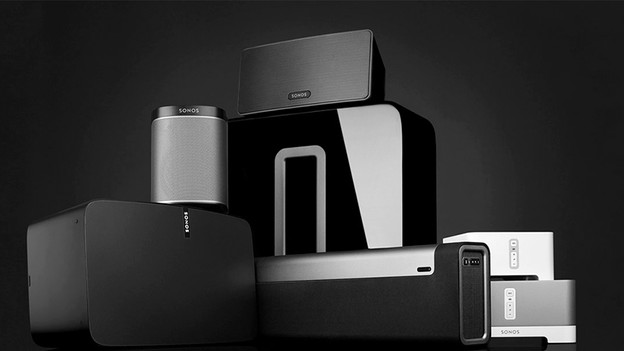
Tip 7: expand your system
The Sonos system offers many expansion possibilities. For example, create a stereo pair or a complete surround system in your living room. Or do you want to add your old hi-fi speakers to your multiroom system? Click the button below for an overview of all expansion possibilities.
Article by Laurence
Audio Expert.