
Written by Siebe
Edited on
20 October 2022
·
16:45
Update Acer drivers
A driver ensures that components in your Acer laptop (such as a webcam) and programs continue to run properly. It's important to update drivers regularly so that you always have the latest version. This keeps your laptop working well for longer. In this article, I explain how to update the drivers for your Acer laptop.
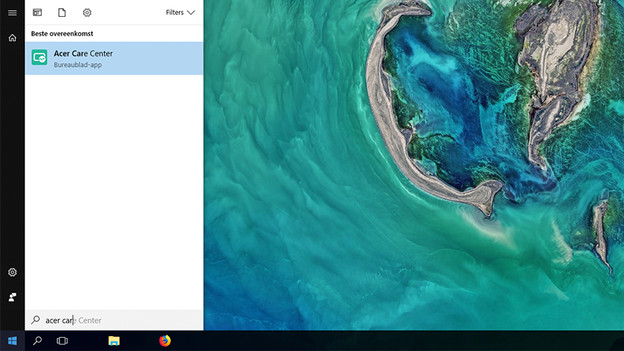
1. Start Acer Care Center
Open the Windows start menu and type 'Acer Care Center'. If all goes well, Acer Care Center appears in the program list. Start the program by clicking on it.
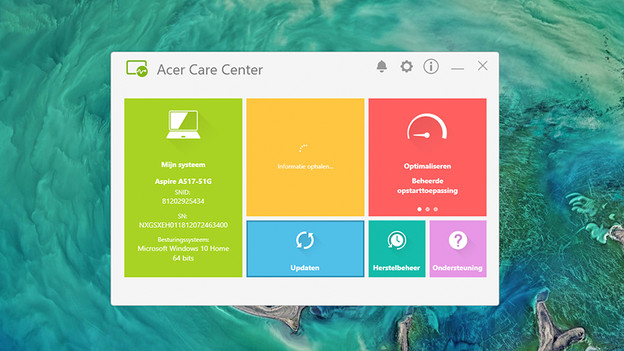
2. Go to the update menu
Once the Acer Care Center has started, you'll see a number of buttons. Click the 'Update' button.
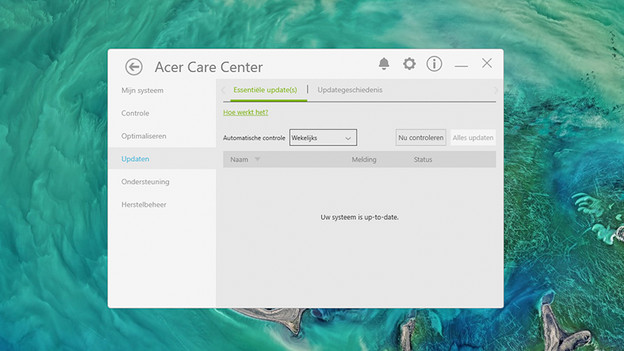
3. Check for updates
On the next screen, click 'Check for updates'. Wait until the process is complete. Don't have any drivers that need an update? Beautiful! If so, you can close the Acer Care Center and you're done. Are there drivers that need an update? If so, click 'Update all'.
4. Update and restart
Wait until the update process is complete and close the Acer Care Center. Next, restart the laptop. Your Acer laptop is now equipped with the latest drivers. This way, the laptop will continue to function optimally for longer.
5. Finally
Your Acer laptop is ready for use. Repeat the above steps every once in a while to ensure that you are completely up to date.

